Incidents & AI fixes
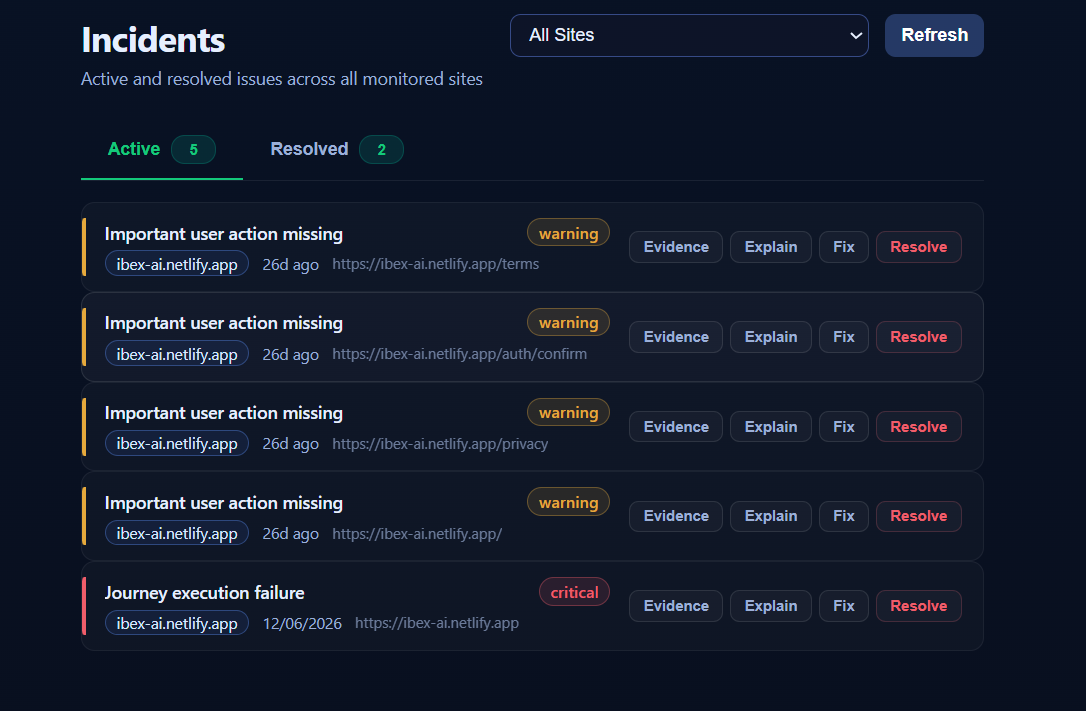
When a check fails, SiteOps opens an incident with evidence - and the AI can explain the root cause, research the fix, and (for code issues) help you fix it.
The whole loop (4:52): a scheduled run catches a missing checkout button, the AI explains the cause from the screenshot, then finds the file, proposes the patch and commits it to its own branch after you approve the diff.
What an incident contains
- Title & severity (warning / critical)
- The failing step - exactly where the journey broke
- Screenshot evidence - what the page looked like at failure
- Reason code, HTTP status, and timestamps
- Affected URL
Every incident is written as a plain-English story - what happened, the likely cause, what to do next, and the impact - so you read "the Book button that opens booking is gone", not a raw error code. The same wording appears on the dashboard, in your alerts, and in the AI.
Incidents show on your dashboard, fire your alerts, and can be reopened or resolved.
Journey incidents
A journey incident names the exact step that broke (e.g. "Click Checkout" (step 4 of 7)) and shows how far the flow got before failing, so it is never confused with a whole-site outage. Some journey failures are neutral (no incident) because your site is fine - sold out / no availability, a 2FA code wall, or a firewall that blocked our checker. See User journeys.
The site was edited - one-click fix
When a control your journey used has been renamed or moved, SiteOps treats it as a review, not an outage. If a control still leads to the same destination it self-heals and the run stays healthy. If it cannot, you get a warning (never a critical page) with a blue "Apply suggested fix" button, grounded in the controls actually on the page now (e.g. "Book an Appointment Now" looks renamed to "Book an Appointment"). One click re-points the step and re-runs to confirm - it resolves if the fix works, or re-opens if not. SiteOps never silently points your journey at the wrong control. (This is different from Fix with AI, which repairs a real bug in your code.)
Explain with AI
Open an incident and choose Explain with AI (or ask in chat: explain incident #123). The assistant:
- Reads the incident data and evidence.
- Explains the likely root cause in plain language for technical and non-technical readers.
- When it helps, researches the exact error/technology on the web and cites how others resolved it.
- Can load the failing page in a real browser (
browse_page) to read its rendered content and console errors.
Explain mode is read-only - it will never change your settings or your code. It only analyzes and researches.
Not everything is a code bug
If the root cause isn't something code can fix - an expired domain, a DNS failure, the host/server being down, an SSL/certificate problem, or a suspended account - the AI says so plainly and gives you the manual steps to resolve it, instead of pretending a code change will help.
Fix with AI (code issues)
When the cause is in your code and you've attached the relevant repo, Fix with AI proposes a change. It follows a safe pattern:
- It proposes the fix and shows you the diff.
- Nothing is written until you confirm.
- On a connected GitHub repo, approved edits are committed to a dedicated work branch (never straight to your main branch), and you can open a PR.
Resolving & reopening
- Resolve an incident when it's handled - it moves out of your open list.
- Reopen if it recurs.
- Ask the AI
how's my site doing?any time for a live count of what's still open.
Next: make sure the right people hear about incidents - Alerts, SSL & status page.