Getting started
Get your first site monitored in about two minutes.
1. Create your account
Go to app.siteops.vubex.dev and sign up. The Free plan needs no credit card and includes monitoring plus 20 AI credits per month.
2. Add a site - the easy way
From an empty account to a verified journey (1:45).
You have two options. The fastest is to just ask the AI:
In the chat, type:
start monitoring https://example.com
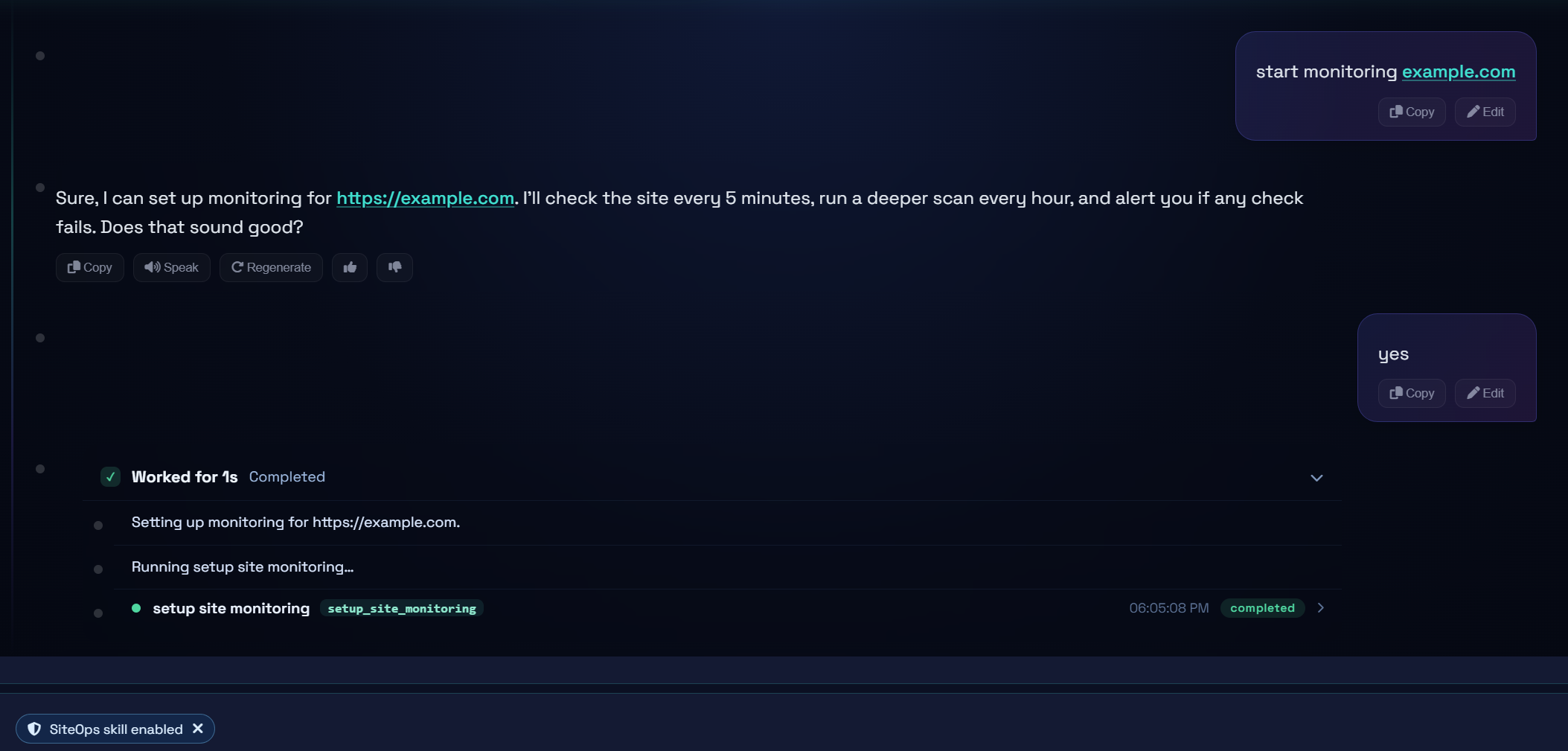
The assistant drafts a sensible setup for you - check frequency, site health scan mode, alert threshold, plus SSL & domain-expiry checks - shows it to you, and asks you to confirm. Say yes and it's live. (This is the setup_site_monitoring tool - see AI tools reference.)
Prefer to do it by hand? Use Add site on the dashboard and fill in the URL and check frequency. See UI elements.
3. Watch your first check run
SiteOps queues a check and runs it in a real browser. Within a minute you'll see:
- a status for the site (healthy / warning / critical),
- uptime and success rate, and
- any incidents, each with screenshot evidence.
Want to run one right now instead of waiting for the schedule? Ask the AI: run a check on my site now.
4. Build your first journey
Uptime tells you a page responded; a journey proves the flow that makes you money still works. Open the Journeys page for your site and either:
- click Suggest journeys for my site - the AI crawls your site and hands you the 3-4 flows worth watching, one click to build; or
- click Build with AI and describe the flow in plain English, e.g.
add a product to the basket and go through checkout to the payment screen.
The AI builds it from the real buttons and fields on your site, then Verify & Save runs it once and monitors it around the clock. You can also just ask the assistant: build a journey for my site that adds a product to the cart and checks out. Full guide: User journeys.
5. Turn on alerts
By default you can get email alerts. To add Slack or Discord, or to get SSL / domain-expiry warnings and a public status page, see Alerts, SSL & status page.
6. Meet your assistant
The SiteOps assistant is on by default in every chat - you don't need to enable anything. Try:
what am I monitoring?how is my site doing - any incidents?when does my SSL and domain expire?search the web for how to fix a 502 on nginx
Full guide: Using the AI assistant.
That's it. You now have real-browser monitoring, evidence-backed incidents, and an AI that can read it all and act. Next: learn what the monitoring actually does, or dive into the AI assistant.